Check your website's SEO with Google Search Console: which reports to review and what it does not show
How to check website SEO with Search Console: which reports to look at, what data it does not provide and how to fill the gaps with a free on-page analyzer.
· 3 min read
Google Search Console is the only tool that shows what Google actually knows about your site: which pages it indexed, which searches you appear for and which problems it found. To check website SEO with Search Console you do not need to pay anything, just verify that you own the domain. But it has limits: it does not tell you why a page has a poor title, and it does not let you review other people's sites. Here we explain which reports to look at and how to fill the gaps.
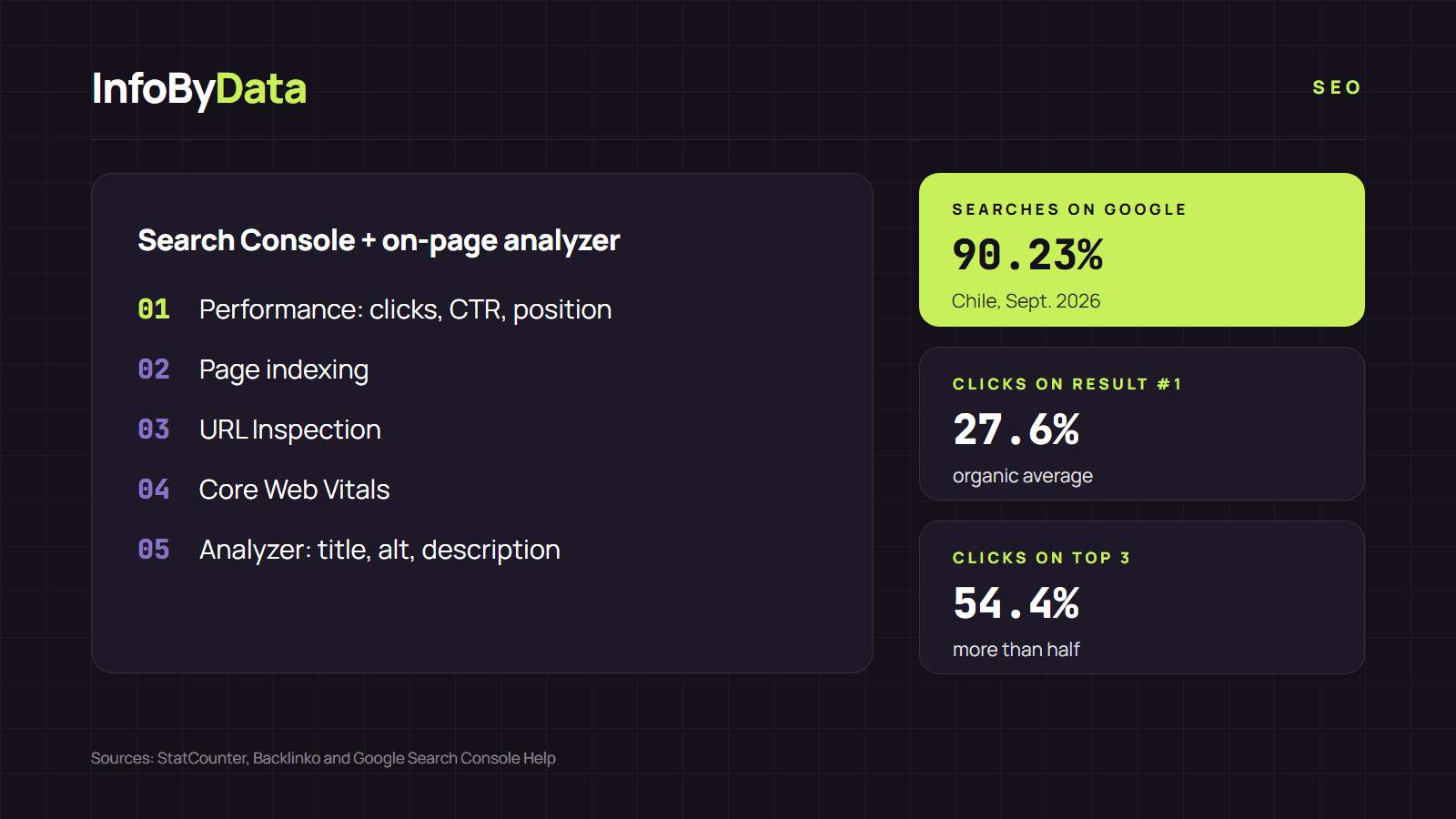
90.23%
Searches in Chile made on Google
September 2026
27.6%
Clicks on the first result
organic average
54.4%
Clicks on the top three results
more than half the total
Source: StatCounter (Chile, Sept. 2026) and Backlinko (4 million results)
View the data as a table
| Searches in Chile made on Google | 90.23% | September 2026 |
| Clicks on the first result | 27.6% | organic average |
| Clicks on the top three results | 54.4% | more than half the total |
The 4 reports to check website SEO with Search Console
1. Performance: how people find you
The Performance report shows clicks, impressions, CTR and average position by query, page, country and device. By default it shows the last three months, according to Search Console Help. It helps you see whether your traffic is going up or down and which pages are losing visibility. We explain each metric in our article on SEO metrics.
2. Page indexing: what is in Google
This report separates indexed pages from those that are not and explains why: blocked by robots.txt, with noindex, duplicates, redirects, or discovered but not yet crawled. If an important page shows as "not indexed", that is your first fix.
3. URL Inspection: how Google sees a page
Type a URL into the top bar and Search Console tells you whether it is indexed, when Google last crawled it and which canonical Google selected. According to the tool's help page, the Google-selected canonical can only be seen in the indexed version; the live test cannot predict it. The live test does show you the code and the JavaScript output as Google processes them.
4. Core Web Vitals: the real experience
It groups your URLs by loading speed (LCP), responsiveness (INP) and visual stability (CLS), using real-user data from Chrome. If your site has little traffic, the report may be empty.
What you do not see when you check website SEO with Search Console
| You need to know | Search Console? | What to use |
|---|---|---|
| Whether a page is indexed | Yes | URL Inspection |
| Which searches bring you visits | Yes | Performance |
| Whether a page's title is too long | Not directly | On-page analyzer |
| How many images lack alt text | No | On-page analyzer |
| Whether the meta description is missing | No | On-page analyzer |
| The SEO of a site that is not yours | No | On-page analyzer |
Search Console measures results; it does not review the code page by page. For that you need a tool that reads the HTML. Our tool to check website SEO reviews the title, description, H1, canonical, images, links and structured data of any public page, yours or a competitor's.
How to check website SEO with Search Console and an on-page analyzer
- In Performance, sort pages by impressions and look for those with many impressions but a low CTR.
- Run those pages through our tool to check website SEO. Often the problem is a truncated, generic or repeated title.
- Fix the title and the description, publish, and request indexing from URL Inspection.
- Go back to Performance in a few weeks and compare that page's CTR.
If you want a quick review of your whole site, follow our checklist to check website SEO in 10 minutes. To find out where you rank for a specific search, see how to check your website ranking.
What it means for you
- Verify your site in Search Console today. It is free and it is the only source of Google data about your own site.
- Use Search Console to find and the analyzer to explain. One tells you which page has a problem; the other, what is in its code.
- Measure the effect of each change. Write down the date of each fix and compare performance a few weeks later.
Sources
- check website SEO with Search Console
- Google Search Console
- check website SEO
- URL Inspection
- indexing
- SEO analyzer