SEO audit: what it is and how to do one step by step on your website
An SEO audit checks whether Google can find, read and index your site. How to do one in 7 steps with free tools, following the official Google documentation.
· 4 min read
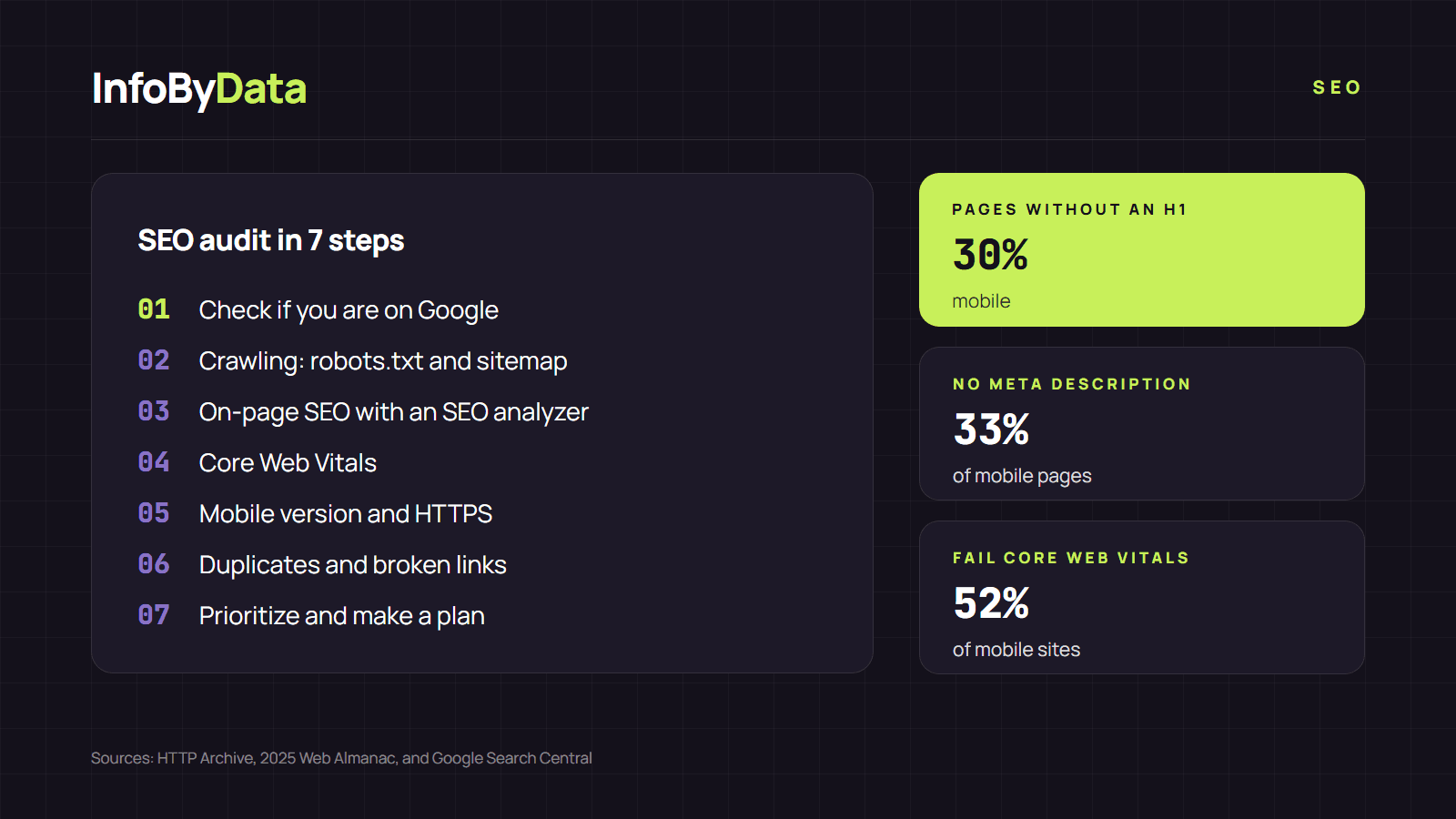
An SEO audit is a full review of your site to find out whether Google can find, read and index it, and what is holding back its rankings. It is worth doing because basic errors are common: according to HTTP Archive's 2025 Web Almanac, 30% of mobile pages have no H1, 33% have no meta description and 52% of mobile sites fail Core Web Vitals.
30%
Pages without an H1
the main heading
33%
Pages without a meta description
the text under the title in Google
52%
Sites that fail Core Web Vitals
loading, stability and responsiveness
Source: HTTP Archive, 2025 Web Almanac, SEO chapter, mobile
View the data as a table
| Pages without an H1 | 30% | the main heading |
| Pages without a meta description | 33% | the text under the title in Google |
| Sites that fail Core Web Vitals | 52% | loading, stability and responsiveness |
What an SEO audit is and when to do one
An SEO audit reviews three layers of your site:
- Crawling and indexing: whether Google can access your pages and store them in its index.
- On-page SEO: whether each page has a well-written title, description, headings and images.
- Experience and content: speed, the mobile version, links and content quality.
A full SEO audit makes sense when you launch a site, before and after a redesign or migration, and when organic traffic drops for no clear reason. Between audits, check your SEO metrics in Search Console every month to catch problems early.
How to do an SEO audit in 7 steps
1. Check whether your site is on Google
Search for site:yourdomain.com on Google. Google's SEO Starter Guide explains that if you see results from your site, you're in the index. To find out how many pages are indexed and why others are not, open the page indexing report in Google Search Console. The URL Inspection tool shows how Google sees a specific page.
2. Check crawling: robots.txt and sitemap
Open yourdomain.com/robots.txt and make sure it doesn't block important pages. According to the 2025 Web Almanac, on 13.2% of mobile sites robots.txt returns a 404 error. Also check that you have a sitemap with the URLs you care about. Google notes that a sitemap is optional, but it helps Google find your pages.
3. Review the on-page SEO of your key pages
For each important page (home page, categories and best-selling pages), check the title, meta description, H1, canonical tag, images without alt text and structured data. You can do it in seconds with our free SEO analyzer: enter the address and get a point-by-point review.
Google asks for titles that are "unique to the page, clear and concise", and short, unique descriptions. We explain each element in our on-page SEO guide.
4. Measure speed: Core Web Vitals
Google recommends achieving good Core Web Vitals for success with Search. These are the targets:
| Metric | What it measures | Google's target |
|---|---|---|
| LCP | How long the main content takes to load | Under 2.5 seconds |
| INP | How long the page takes to respond to a click | Under 200 milliseconds |
| CLS | How much the page shifts while loading | Under 0.1 |
Check the Core Web Vitals report in Search Console, which uses real-user data.
5. Check the mobile version and security
Google uses the mobile version of your site for indexing and ranking, so all important content must also be on mobile. Also confirm that the whole site uses HTTPS: 91.5% of mobile pages already do.
6. Look for duplicate content and broken links
Google explains that duplicate content is not a violation, but it wastes crawl resources and confuses users. Each piece of content should have a single URL: redirect repeated versions or point to the main version with a canonical tag. Also check internal links that lead to pages that no longer exist.
7. Prioritize and make a plan
An SEO audit is only useful if it ends in action. Sort the findings into three groups:
- Urgent: anything that prevents indexing (accidental noindex, robots.txt blocks, pages that are down).
- Important: anything that affects many pages (duplicate titles, missing H1s, failing Core Web Vitals).
- Ongoing improvement: images without alt text, structured data and internal links.
To see which problems come up most often, read about the most common SEO mistakes and how to fix them. For the technical steps in detail, follow our guide to implementing technical SEO.
Which tools to use in an SEO audit
You don't need to pay for a good SEO audit. These tools cover the essentials:
| Tool | What it's for in the audit |
|---|---|
| Google Search Console | Indexing, Core Web Vitals, crawl errors and searches |
| InfoByData's SEO analyzer | A page's title, meta description, H1, canonical, images and structured data |
site: search on Google |
A quick look at which pages are indexed |
We show more options in our article on free SEO tools. Google also clarifies what isn't worth checking: it doesn't use the meta keywords tag, and there is no magic word count for content.
What it means for you
- Start with indexing. If Google can't index your pages, no other improvement matters. Search Console tells you for free.
- Review your most important pages first. The home page, categories and the pages that sell the most or bring the most traffic have the biggest impact.
- Repeat the SEO audit after every major change. A redesign or migration can wipe out titles, canonicals or redirects without anyone noticing.
Sources
- SEO audit
- SEO analyzer
- technical SEO
- on-page SEO
- Search Console
- Core Web Vitals