How to read SEO analyzer results: which errors to fix first
How to read SEO analyzer results in green, yellow and red, and in what order to fix the errors, with our own data from 27 Chilean websites from Nov. 2026.
· 3 min read
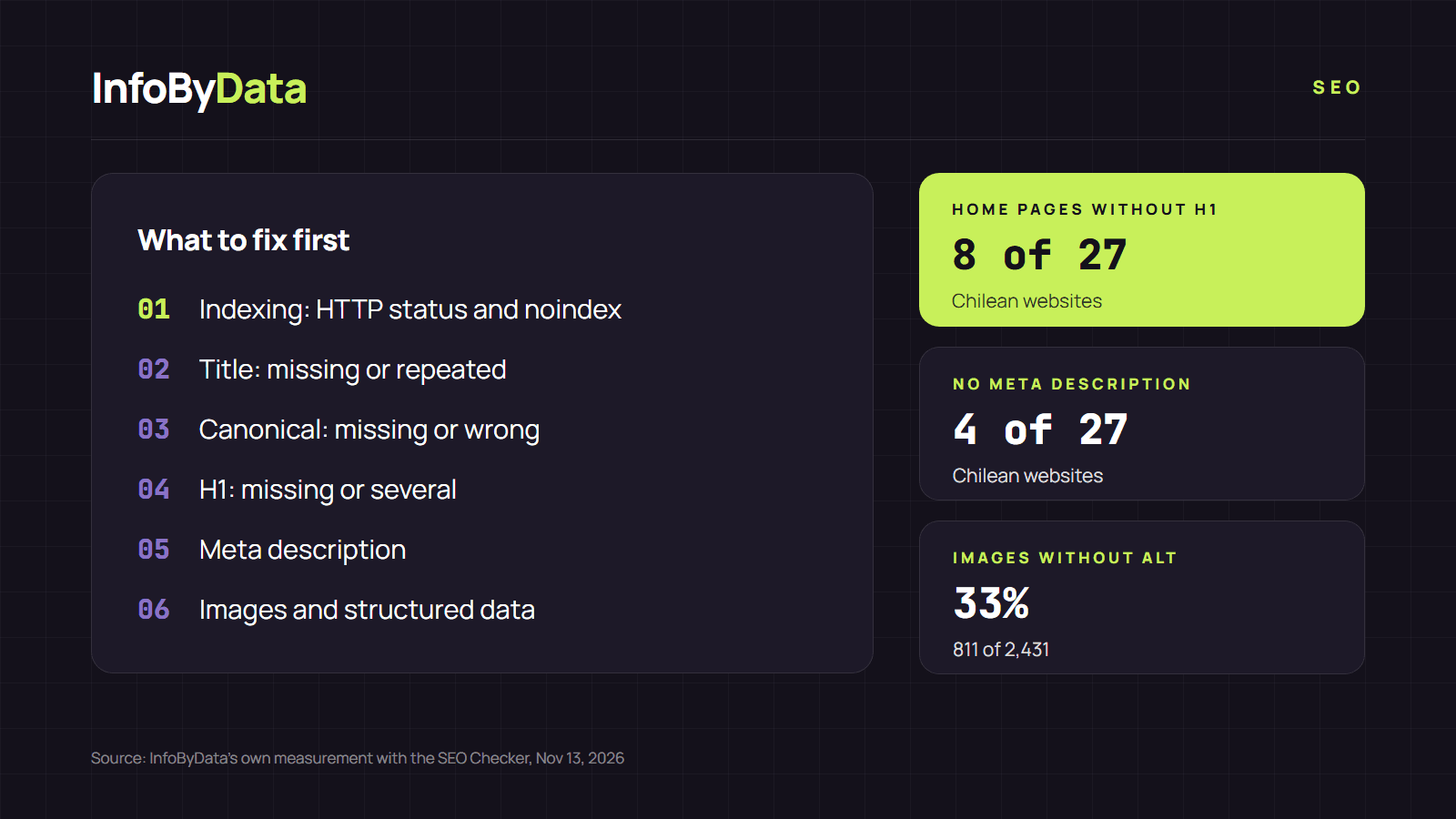
An SEO report can contain twenty observations, and not all of them carry the same weight. To see what shows up in practice, we ran the home pages of 27 Chilean websites (universities, banks, news outlets and telecom companies) through our analyzer on November 13, 2026. 8 of 27 had no H1 in their HTML, 4 had no meta description and one in three images had no alternative text. Knowing how to read SEO analyzer results helps you decide what to fix today and what can wait.
How to read the report's colors
Most analyzers use a traffic-light system. In our SEO analyzer it works like this:
- Green: the element exists and meets the recommendation. Nothing to do.
- Yellow: it exists but can be improved. For example, a 70-character title that Google will probably truncate.
- Red: it is missing or has a problem that may affect indexing or how you appear in Google.
The color shows the status, not the urgency. In SEO analyzer results, a red on "images without alt" is less serious than a yellow on "robots: noindex". That is why it is better to sort the results by impact, not by color.
In what order to fix SEO analyzer results
| Priority | What to check | Why |
|---|---|---|
| 1. Indexing | HTTP status other than 200, noindex, X-Robots-Tag header |
If Google cannot index the page, nothing else matters |
| 2. Title | Missing, empty or repeated across many pages | Google uses it for the result's title around 87% of the time |
| 3. Canonical | Missing or pointing to another URL by mistake | Google may show a different version of the page |
| 4. H1 | Missing, or several with the same weight | Google also uses headings to generate the title |
| 5. Meta description | Missing or too long | It shapes the text people see before clicking |
| 6. Images and structured data | Missing alt, no schema | Ongoing improvements for images and rich results |
The 87% figure comes from the Google Search Central blog. And Google's documentation on titles warns that having several headings with the same visual weight "can be confusing" when generating the result's title.
Three results that often confuse people
"No H1", but the page does show one. An analyzer that reads the HTML delivered by the server does not see what is built later with JavaScript. In our measurement, several sites without an H1 load part of their content that way. Google does run JavaScript, but at a later stage, according to its JavaScript SEO guide. Check the page with Search Console's URL Inspection before changing anything, and run it through the SEO analyzer again once you fix it.
"Different final URL". If you type yoursite.com and the report shows another address, there was a redirect. That is normal (from http to https, or to /personal), but it should be a single, permanent redirect.
"Title too short". On a home page, a title like "Universidad de Chile" is fine: it is the name people search for. On a product page or an article, however, a short title wastes space that could describe the content.
To see how to fix each error, read about the most common SEO errors. And if you are just starting out, first read what an SEO analyzer is and what it checks.
What it means for you
- Sort by impact, not by color. First, what keeps you out of Google; then, what changes how you appear; last, the improvements.
- Confirm before fixing. SEO analyzer results only show the HTML. If the analyzer does not see an H1 that you can see, it may be JavaScript. Search Console shows you the version Google processes.
- Fix it in the template. If the same result appears on many pages, the problem is in the site's design, and a single fix solves all of them.
Sources
- InfoByData's own measurement with the SEO Checker on the home pages of 27 Chilean websites, November 13, 2026
- Google Search Central, influencing your title links in search results
- Google Search Central Blog, more info about how Google generates titles (September 2021)
- Google Search Central, understand the JavaScript SEO basics
- SEO analyzer results
- SEO analyzer
- SEO errors
- on-page SEO
- H1
- meta description